Your 2025 Guide to Essential Electrical PDU Features
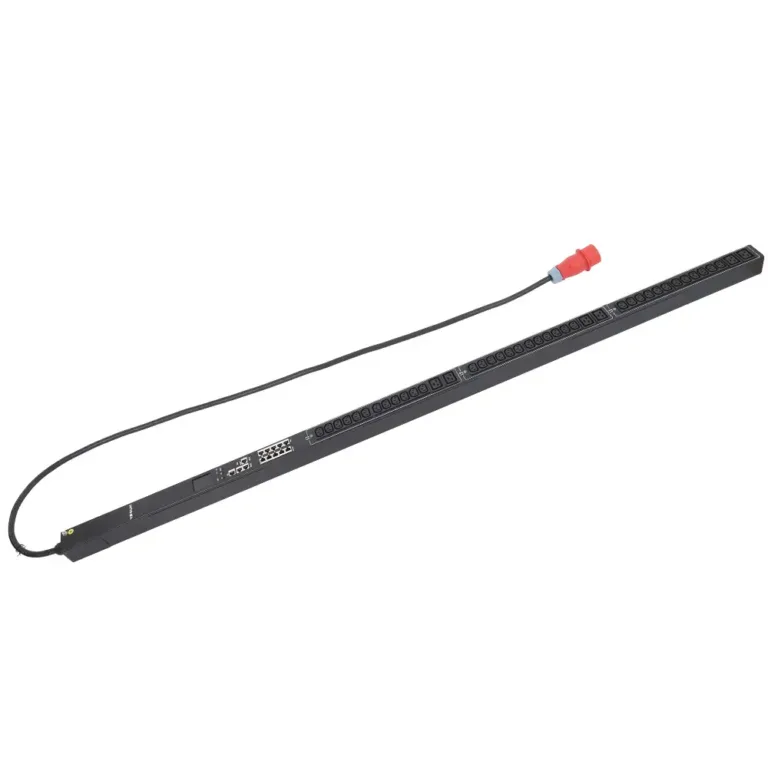
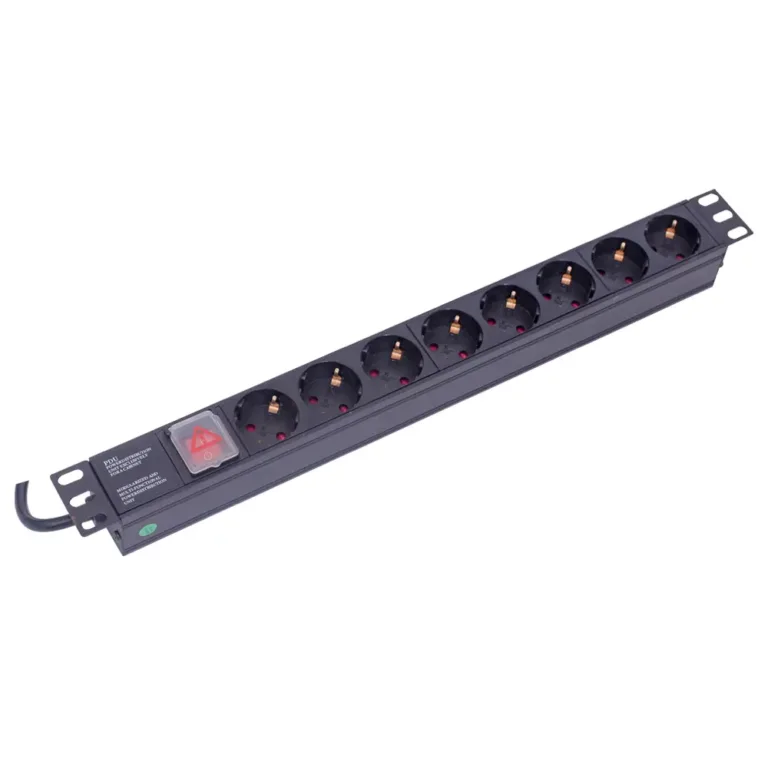
A modern electrical PDU for 2025 needs intelligent monitoring for energy data, remote management for outlet control, and high-density power for AI hardware.


+86 15867381241
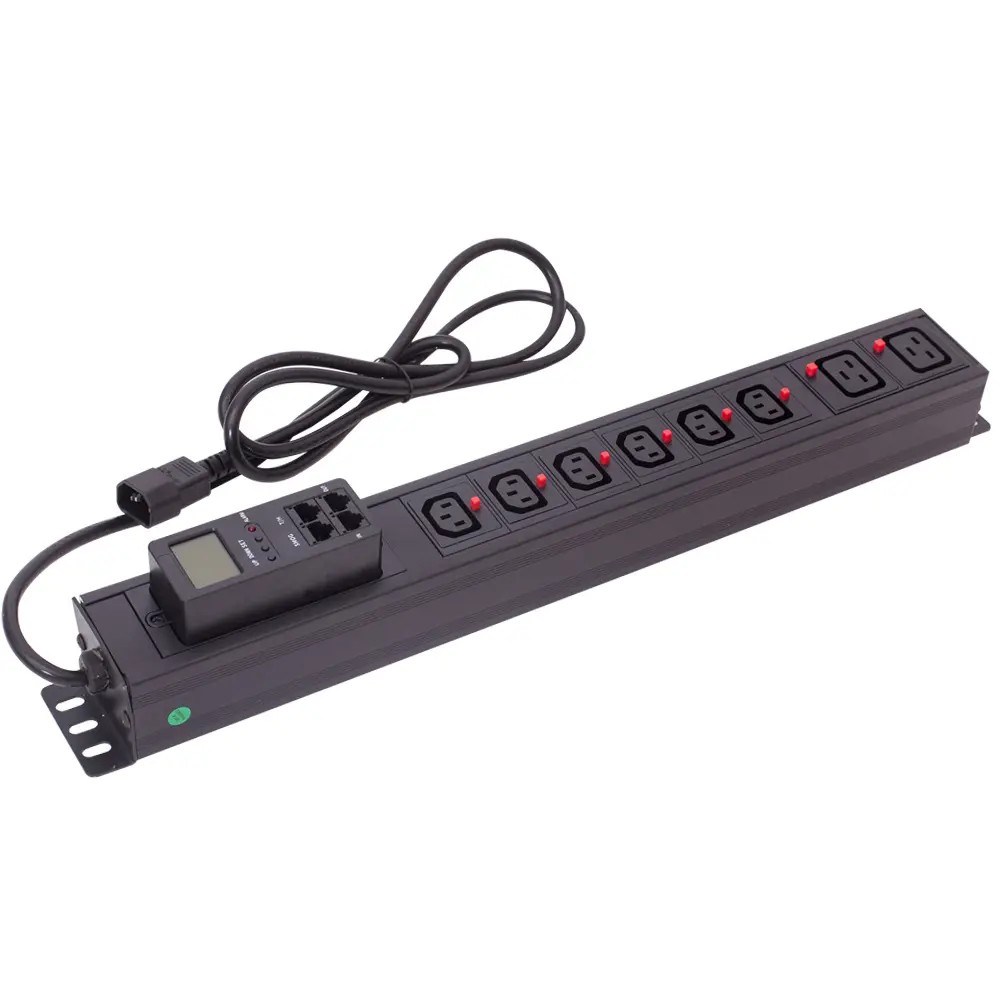
There are several simple ways to find the IP address of a smart PDU, including checking the device label, using a network management tool, or scanning your local network. Most modern smart PDUs, such as YOSUN models, allow you to locate the IP address within minutes during initial setup or maintenance.
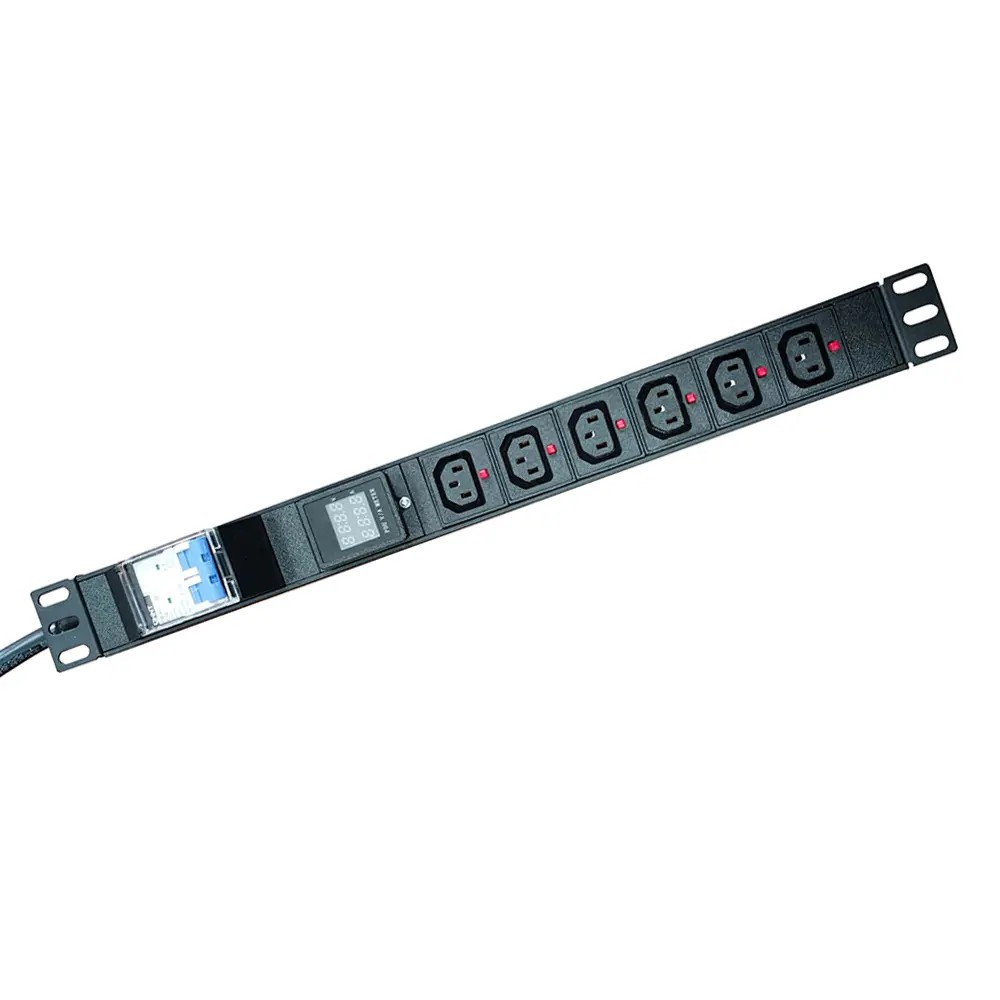
This is the simplest and most reliable method for locating a PDU IP address, especially for new or recently reset devices. Many smart PDUs include a label on the side or rear of the unit that lists key network information, such as the default IP address, MAC address, and serial number.
If the label is missing or unreadable, check the product manual or quick start guide for the factory network settings. Some smart PDUs are shipped with a default IP address, while others obtain an IP automatically through DHCP, depending on the manufacturer and model.
Tip: Record the PDU’s IP address and MAC address after installation to simplify future network management and troubleshooting.
If the power distribution units have never been configured, they will retain their factory default IP addresses. To connect:
192.168.0.1 in the address bar.If the default IP does not load, the PDU has likely been assigned a different address via DHCP. Move to the network scanner method below.
When a PDU receives its IP automatically from a DHCP server, the address will not match the factory default. Network scanning tools detect all connected devices on your local network and help you identify the PDU.
Two widely used tools are:
| Tool | Best For | Pros | Cons |
|---|---|---|---|
| Advanced IP Scanner | Beginners & Windows users | Free, fast, with an intuitive graphical interface | Windows-only, limited advanced features |
| Nmap | Technical users & IT admins | Powerful, cross-platform, supports port and service detection | Command-line only, has a steeper learning curve |
How to scan:
If the PDU does not appear in scan results or fails to respond, work through these troubleshooting steps in order, starting with basic network checks and following the guidance provided by the PDU manufacturer:
First, confirm the Ethernet cable is securely plugged into both the PDU and your network switch. Ensure your computer is connected to the same local subnet and VLAN as the PDU.
Tip: DHCP-assigned IPs can change after a reboot. Re-scan the network after power cycling the PDU to pick up updated addresses.
If all other steps fail, reset the PDU to restore its default settings. Most Smart PDUs have a physical reset button on the unit. Press and hold it for 10 seconds until the device restarts. After resetting, the PDU will revert to its default IP (192.168.0.1).
Note: A factory reset erases all custom configurations. Only use this method as a last resort.
The best way to prevent repeated IP lookup problems is to assign a static IP address during initial setup. A fixed address ensures the PDU is always reachable at the same location, even after reboots.
To set a static IP via the web interface:
For advanced users, some YOSUN models also support IP configuration via CLI or ARP commands for specialized deployments. Always confirm the chosen address is not already in use to avoid network IP conflicts.
Locating a PDU’s IP address is a simple process when you follow the right order of operations: start with the easiest method (checking the device label), try the default factory IP, then use a network scanner for DHCP-assigned addresses.
Setting a static IP during initial setup is the most reliable way to avoid lookup issues long-term. If you run into persistent problems with your YOSUN Smart PDU, verify network connections first, or contact YOSUN support for further troubleshooting.
Press and hold the physical reset button on the unit for approximately 10 seconds. The device will restart and revert to its default IP address and credentials.
Most Smart PDUs use admin for both the default username and password. Refer to your model’s user manual for model-specific credentials.
Yes. Connect your phone or tablet to the same local network, then enter the PDU’s IP address in a mobile web browser to access the management panel.
First, check that the Ethernet cable is properly connected and both devices are on the same network. If the issue persists, try power cycling the PDU and re-scanning, or reset to factory defaults.