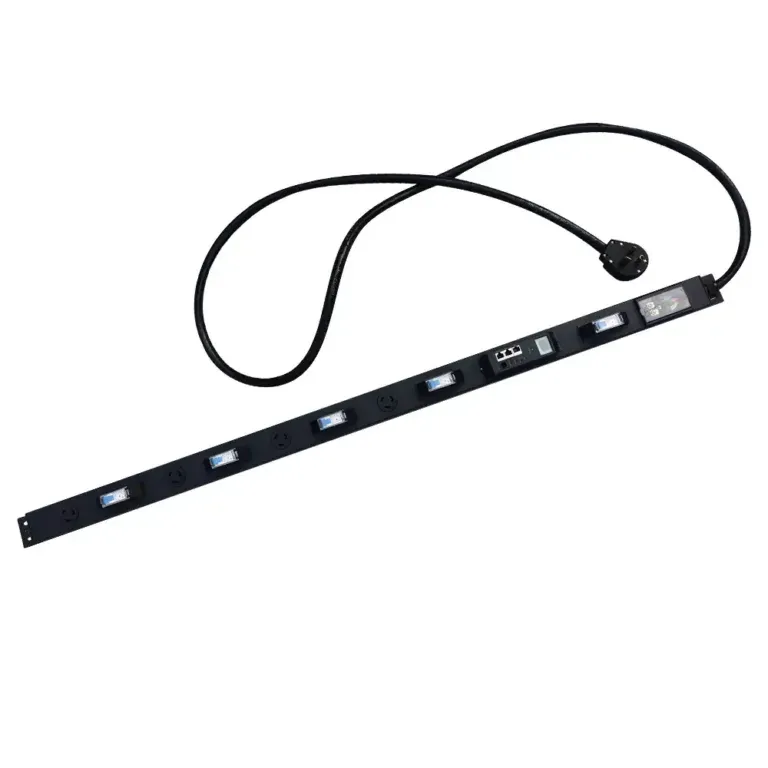
A Step-by-Step Guide to Selecting a 1U Switched PDU
Choose the right 1U switched PDU by matching power, outlet types, and remote management to your rack needs. Ensure safety, capacity, and future expansion.


+86 15867381241
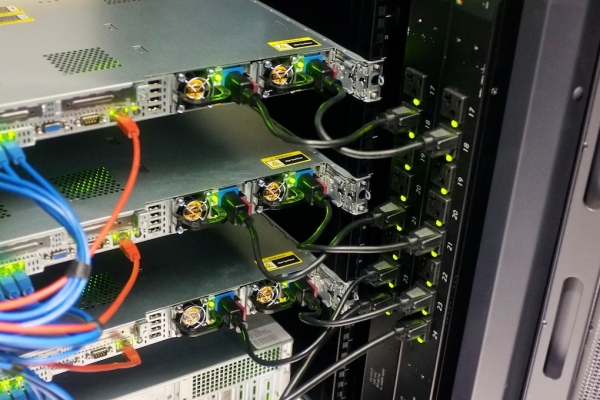
To reset a Tripp Lite PDU, users can follow these quick steps:
Locate the reset button or use the web interface on the smart pdu.
Press and hold the reset button for several seconds, or select the reset option online.
Wait for the pdu to restart.
⚠️ Always follow safety guidelines from the pdu manufacturer. Expect connected equipment to lose power briefly during the reset.
To reset a Tripp Lite PDU, find the reset button or use the web page. Hold the button down or pick the reset choice online.
A power cycle is a fast way to reset the PDU. Turn off all equipment that is plugged in. Unplug the PDU from the wall. Wait for 10 seconds. Plug the PDU back in.
The reset button can do a soft reset or a factory reset. A soft reset keeps your settings safe. A factory reset will erase all settings.
Advanced users can use a console cable to get to the PDU’s command line. Look at the user manual to find the right commands.
After you reset, check if the PDU works. Look at the power lights. Test each outlet to make sure they give power.
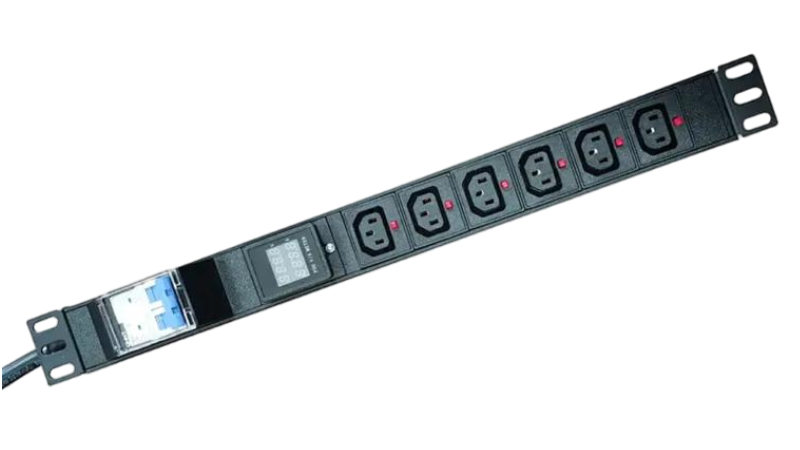
A power cycle is the simplest way to reset a pdu. This method involves turning the device off and then back on. Many users choose this method when the pdu becomes unresponsive or needs a quick restart.
Steps to Power Cycle a PDU:
Turn off all equipment connected to the pdu.
Unplug the pdu from the main power source.
Wait for about 10 seconds.
Plug the pdu back into the power source.
Turn on the connected equipment.
Note: A power cycle only reboots the pdu. It does not erase any settings or configurations.
Some pdu models have a physical reset button. This button allows users to perform a soft reset or, in some cases, a factory reset.
How to Use the Reset Button:
Locate the reset button on the pdu. It is often on the front or back panel.
For a soft reset, press and release the button quickly. The pdu will restart but keep all settings.
For a factory reset, press and hold the button for 5-10 seconds. The pdu will erase all custom settings and return to default.
⚠️ Always check the user manual before using the reset button. Some models may have different reset times or button locations.
A console cable provides another way to reset a pdu, especially for advanced users or IT staff. This method uses a serial connection to access the pdu’s command line interface.
Steps for Resetting with a Console Cable:
Connect the console cable to the pdu and a computer.
Open a terminal program on the computer (such as PuTTY or Tera Term).
Set the correct communication settings (baud rate, data bits, etc.).
Log in with the admin credentials.
Enter the reset command as described in the user manual.
Tip: Using a console cable allows users to choose between a simple reboot and a full factory reset.
Many smart pdu models offer a web interface for remote management. This method is convenient for users who want to reset the device without physical access.
Resetting a PDU via Web Interface:
Open a web browser and enter the pdu’s IP address.
Log in with the admin username and password.
Navigate to the system or maintenance section.
Select the reboot or factory reset option.
Confirm the action and wait for the pdu to restart.
Difference Between Reboot and Factory Reset:
A reboot restarts the pdu without changing any settings.
A factory reset erases all custom settings and restores the pdu to its original state.
By following these methods, users can reset their pdu safely and effectively. Each method serves a different purpose, so users should choose the one that fits their needs.
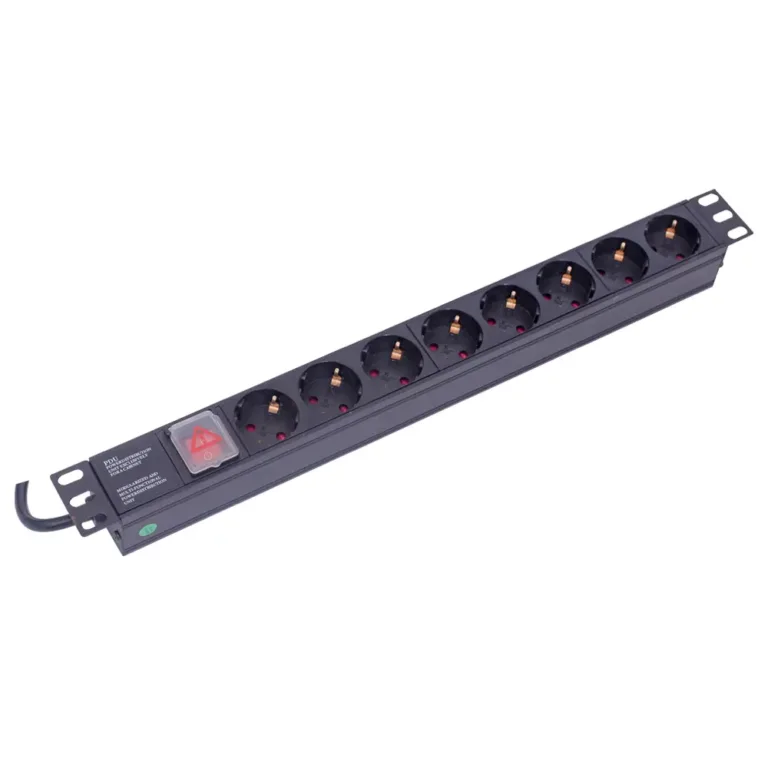
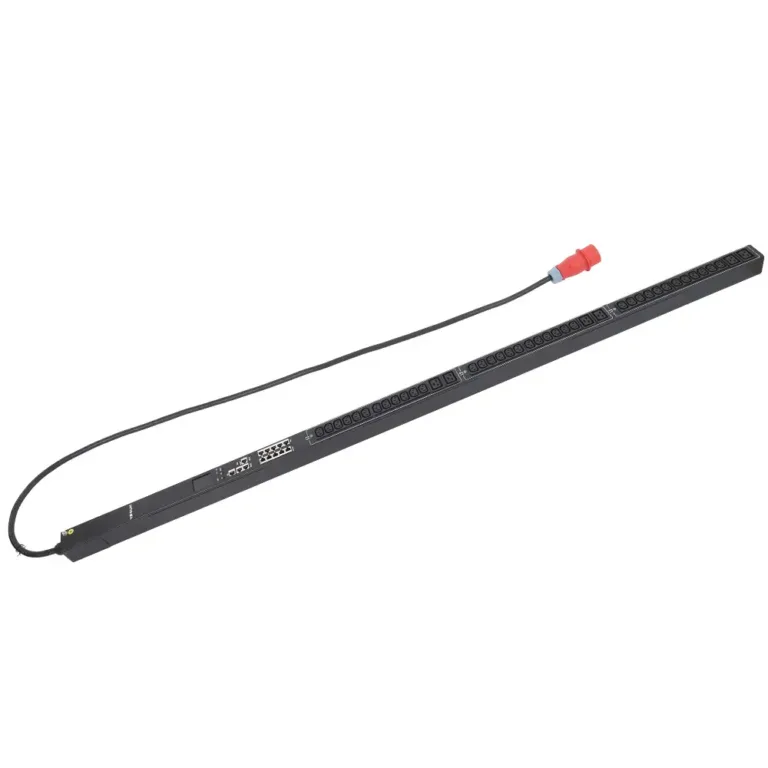
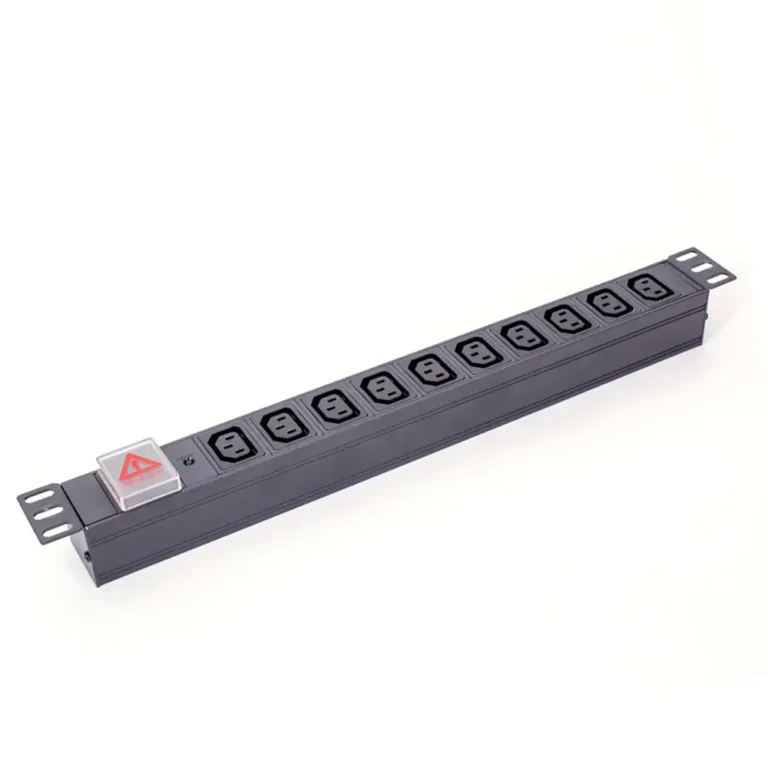
Tripp Lite PDU models have reset buttons in different spots. Rack-mounted models usually have the button on the front. Vertical models often put the button on the side. The table below shows where you can find the reset button:
PDU Model Type | Reset Button Location |
|---|---|
Rack-mounted | Usually on the front panel |
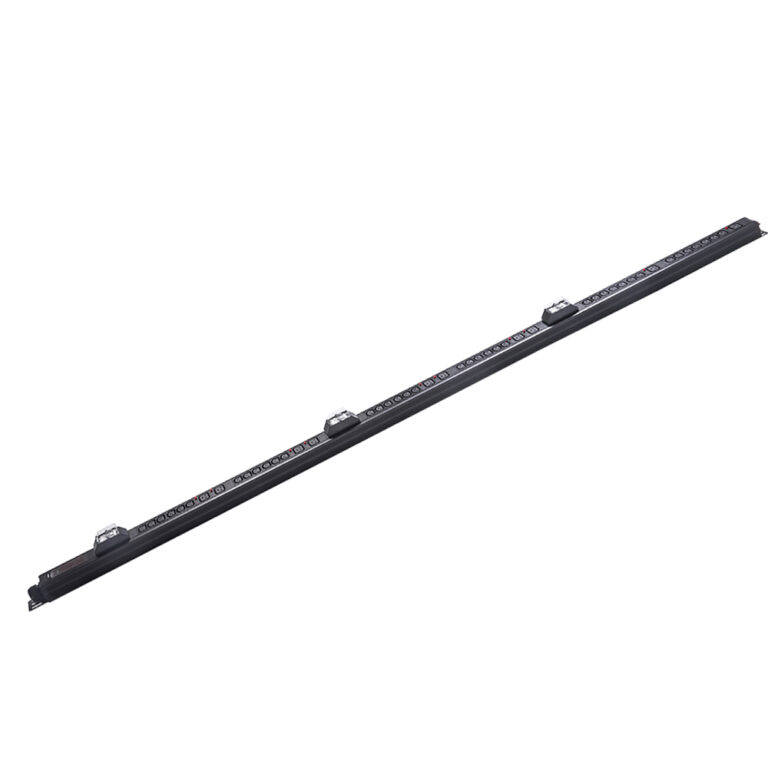
Vertical | Often found on the side |
🛠️ Tip: Look for labels or marks near the button. Some models have a tiny hole. You might need a paperclip to press the reset.
The way you reset a PDU depends on its model. Basic models use a power cycle or a quick button press. Advanced models, like switched or monitored PDUs, may need a longer button press or the web interface.
Rack-mounted Models:
Find the reset button on the front. Press and let go for a soft reset. Hold it for about 10 seconds for a factory reset.
Vertical Models:
The reset button is on the side. Press quickly for a soft reset. Hold it longer for a factory reset.
Smart or Switched Models:
These models let you reset with a web interface or console cable. Log in to the management page. Find the reset option and follow the steps.
Note: Always read the user manual for the right steps. Some models have special ways to reset.
If you know where the reset button is and how to use it, you can reset your PDU fast and safely.
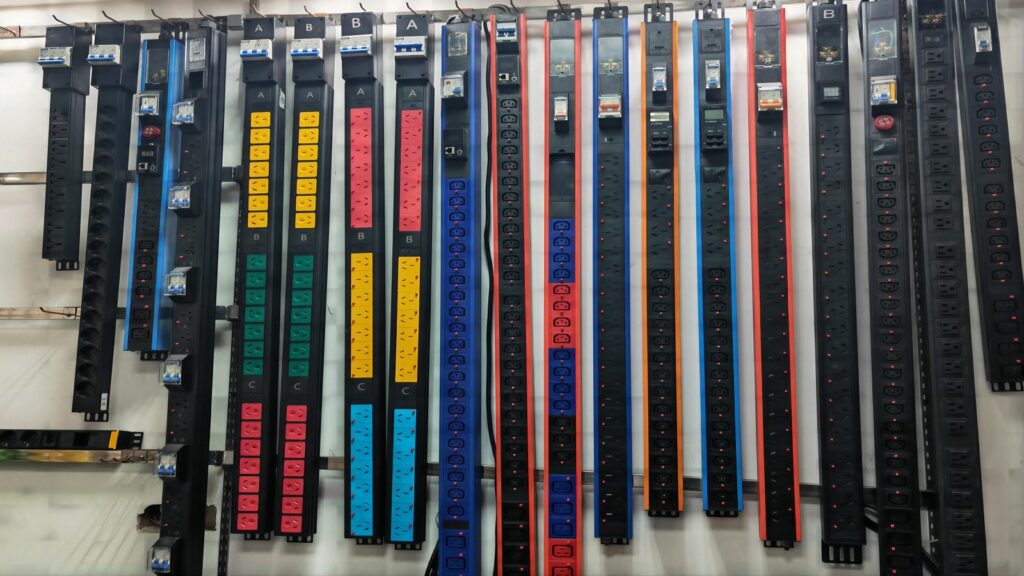
Lots of people have trouble when they reset a PDU. Here are some problems that happen often:
The device does nothing after you press reset.
The web page does not open or shows a mistake.
The PDU will not turn on after you reset it.
Settings stay the same after a factory reset.
Connected equipment does not get power after the reset.
⚠️ Always make sure the power source is steady before you start fixing things. If the power is not steady, strange problems can happen.
Users can try different steps to fix these problems:
Check Power Connections: Make sure the PDU is plugged in tight. Look at the power cable for any damage.
Verify Reset Steps: Read the user manual to check the right way to reset your model.
Use the Correct Button: Some models have more than one button. Only use the button that says reset.
Wait After Reset: Let the PDU restart for a few minutes before you test devices.
Try a Different Method: If the reset button does not work, try the web page or use a console cable.
Test with Minimal Load: Unplug everything except one device to see if the PDU works.
Issue | Solution Suggestion |
|---|---|
No response after reset | Check power and cables |
Web interface not loading | Restart network connection |
Settings not reset | Hold button longer |
💡 Tip: Always save your important settings before you do a factory reset.
If you still have problems after trying these steps, contact the manufacturer’s support team. Get this information ready before you ask for help:
PDU model number
Serial number
What the problem is
What you already tried
You can contact support by:
Filling out a form on the official website
Calling customer service
Sending an email
For quick help, give clear details and any error messages you saw during the reset.
After you reset the PDU, make sure it works right. First, look at the power indicator lights. These lights should turn on if the PDU has power. If the lights do not turn on, check the power cable and the outlet.
Next, test each outlet. Plug in something small, like a lamp or phone charger. If it turns on, the outlet is working. If it does not, try another outlet or check the reset steps again.
Some smart PDU models have a screen or web page that shows status. Log in and look for messages that say the reset worked. You might see words like “Factory Defaults Restored” or “System Rebooted.” If you do not see these, try to reset the PDU again.
✅ Tip: Always check every outlet and the main screen before you plug in important things.
Here is a simple checklist you can use:
Power indicator lights are on.
All outlets give power.
Status screen or web page shows reset confirmation.
No error messages show up.
When you do a factory reset, the PDU goes back to its default settings. You need to put your custom settings back. Get any backup files or notes you have about your old settings.
To restore your settings, follow these steps:
Log in to the PDU web page or console.
Type in network info, like IP address and gateway.
Set names for outlets and add schedules if you want.
Change security settings, like passwords and user accounts.
Turn on monitoring features or alerts again.
Setting Type | Action Needed |
|---|---|
Network | Enter IP and gateway |
Outlet Control | Name outlets, set timers |
Security | Update passwords |
Monitoring | Enable alerts |
💡 Note: Save your new settings after you change them. This will keep your setup safe if you reset the PDU again.
Restoring your settings helps the PDU work well. Test each feature after you finish to make sure everything is okay.
Resetting a Tripp Lite PDU is not hard. You can turn it off and on, press the reset button, or use the web page. Always be careful and follow safety rules. After you reset it, look at all the outlets and lights to make sure everything works.
Read the user manual for steps for your model.
If you still have problems, ask support for help.
📝 Doing these things keeps your equipment safe and makes sure the PDU works right.