Understanding the Different Types of Server Cabinet PDUs
Understand the types of server cabinet PDUs, from basic to intelligent models, and their features like power monitoring, remote control, and scalability.


+86 15867381241
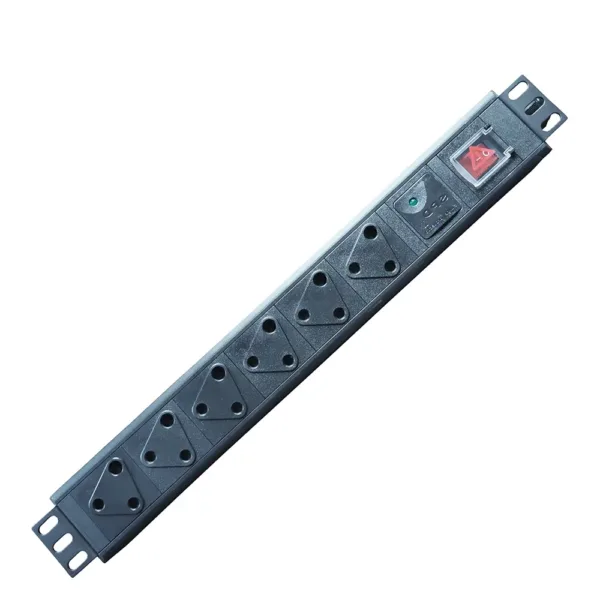
Restarting a PDU is sometimes necessary when devices lose power, outlets stop responding, or the system becomes unresponsive. While the process is usually straightforward, it’s important to do it correctly to avoid disrupting connected equipment.
The exact method depends on the type of PDU you’re using. Some units can be restarted with a physical button, while others allow remote control through a management interface. Before restarting, always check the device manual and make sure it’s safe to interrupt power.
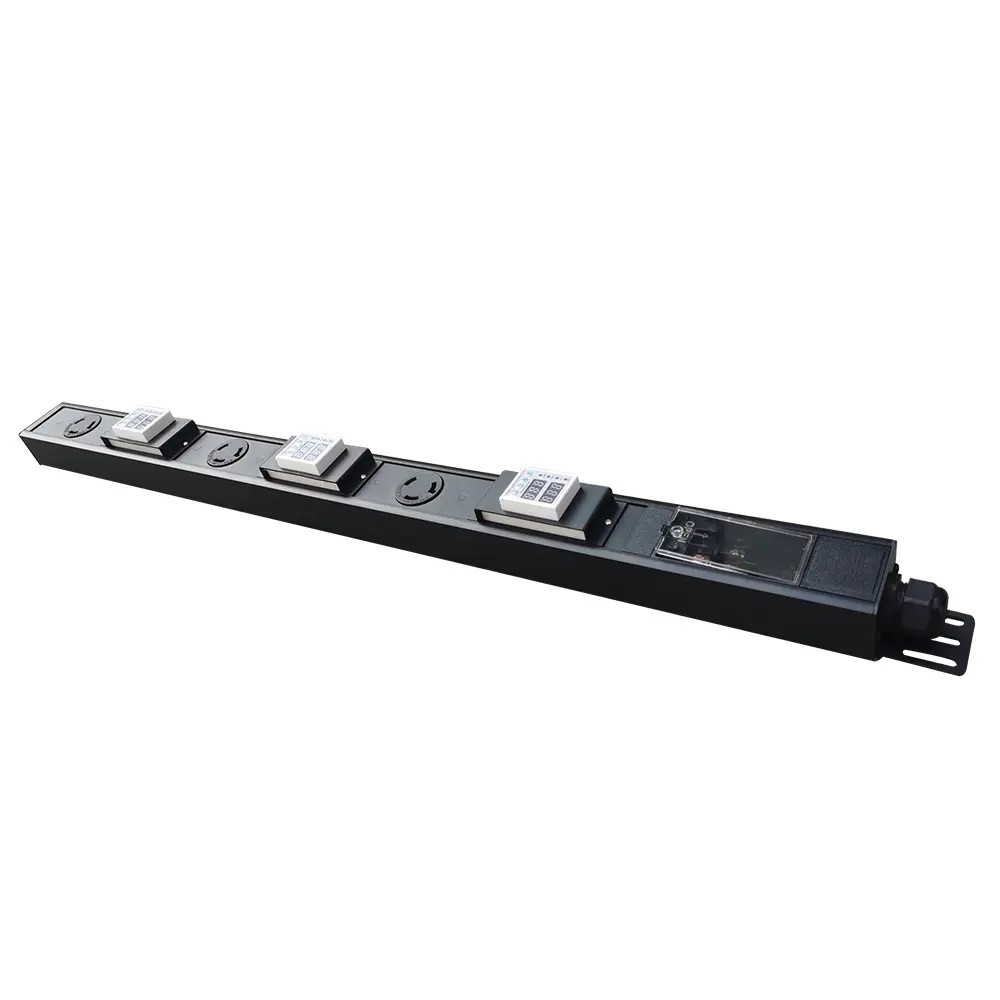
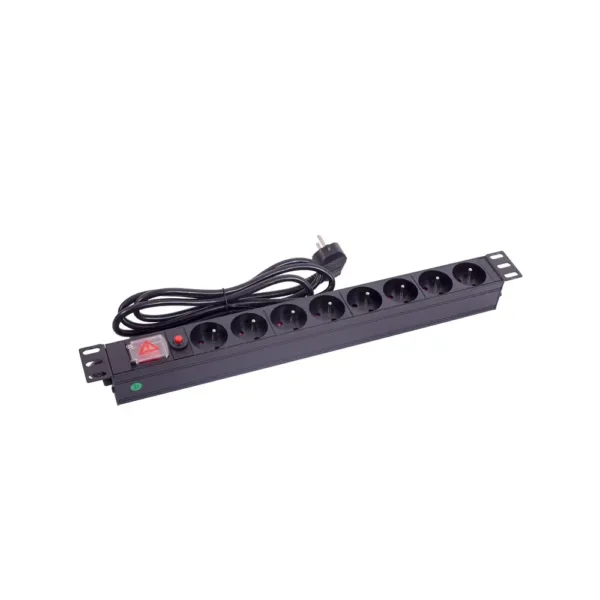
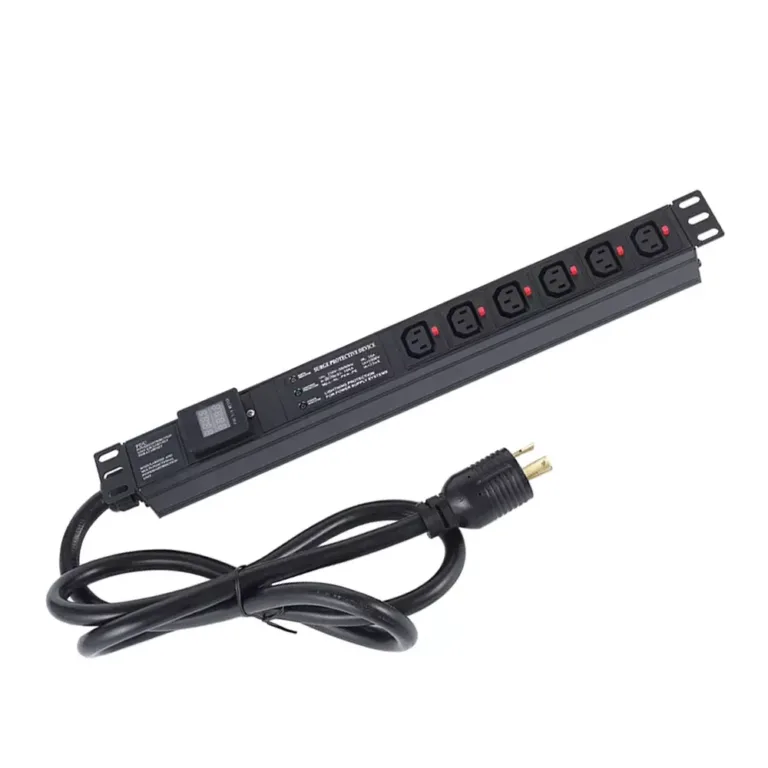
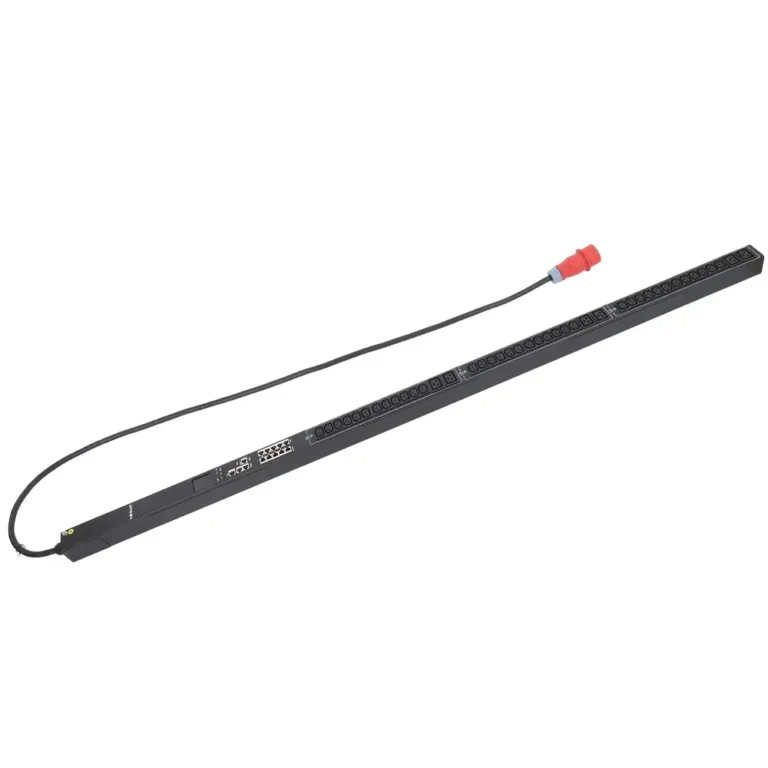
PDUs used in data centers generally fall into several categories, including basic, metered, monitored, and switched models—each with different control and reset options.
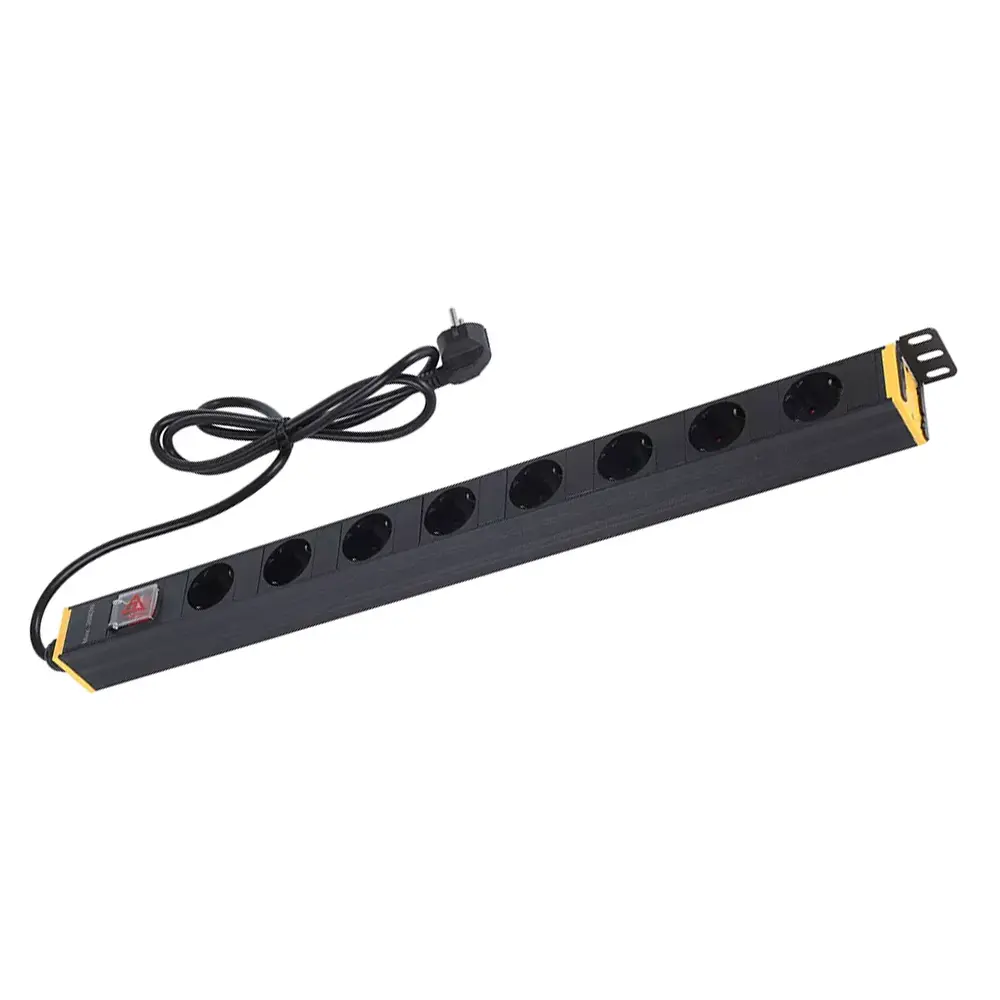
To restart a PDU, the first step is to locate the reset or power control. On most models, this is positioned on the rear or side panel. Some units may have a small recessed button near the display, which can be pressed using a paper clip or similar tool. In many cases, pressing the reset button will not interrupt power to the outlets, but this can vary by model. Always check the device manual before performing any reset to avoid unintended disruptions.
A soft restart is good if the PDU just needs a quick reboot. This way, power to your devices will not turn off. Here are the steps:
Tip: Try a soft restart if the screen is stuck or there are small problems.
A hard reset is typically used when the PDU does not respond after a soft restart. Because this process may interrupt power to connected devices, it’s important to prepare in advance.
For a basic PDU, the process generally includes the following steps:
Always follow the PDU manufacturer’s safety guidelines when performing a hard reset, as procedures may vary depending on the model.
Smart PDUs let you control power from far away. These units let you restart equipment without being next to it. Here are some remote restart choices:
YOSUN smart PDUs have these remote features. Remote power control saves time and helps keep systems working well.
Note: Always make sure you want to send the restart command before you do it from far away. This stops you from turning things off by mistake.
If you follow these steps, you can restart any PDU safely and easily.
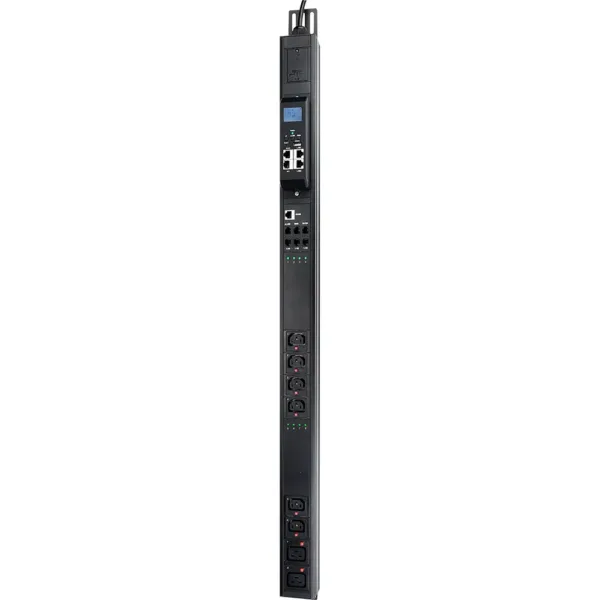
Different PDUs require specific safety measures before restarting. Basic PDUs provide stable power and require manual inspection. Metered PDUs display the load in real time, so you must check the meter reading first. Smart PDUs can be controlled remotely, but you should check the network and listen for alarms. Heavy-duty PDUs can handle greater power, so additional checks on line safety and grounding are necessary.
Only trained experts should install PDUs. They must follow all electrical rules and safety laws. Overload protection stops the PDU from getting too hot or using too much power. Grounding is very important for safety. Checking the PDU often helps find problems early.
The table below lists important safety steps:
| Safety Precaution | Description |
|---|---|
| Disconnect | Unplug the PDU before you fix or test it. |
| Prohibit Re-connection | Make sure no one plugs it back in during checks or repairs. |
| Secure Installation | Check that the PDU is put in right to stop shocks. |
| Earth and Short | Ground the PDU and short live parts to stop shocks. |
| Shroud Live Components | Cover live parts so you do not touch them by accident. |
Before restarting a PDU, it’s important to run through a basic safety checklist to prevent electrical issues:
These checks help reduce the risk of electrical faults and ensure a safe restart process. Always follow the manufacturer’s guidelines for your specific PDU model.
After restarting the PDU, make sure it is operating correctly. Check for any visible issues such as loose wires, screws, or cracks in the enclosure. Use a multimeter to verify proper grounding and phase connections, and ensure there are no short circuits to ground or neutral. Power on the unit gradually and confirm that the input voltage is stable, then measure the output voltage at each outlet. Start by connecting non-critical devices first, and observe the system closely for any unusual sounds, smells, or warning indicators. Add additional devices one at a time to ensure the load remains stable.
Tip: Always monitor the load during this process. Overloading the PDU can cause shutdowns or permanent damage.
Once the PDU is running normally, the next step is to check all connected devices to make sure everything is communicating properly.
Start by looking at the Link LED on each device. A steady light with occasional blinking usually indicates a stable connection. If you’re using a static IP setup, confirm that no other device is using the same IP address (the default is often 192.168.1.100).
For DHCP networks, you may need to restart the PDU in DHCP mode. Then log in to your router’s admin panel and locate the device using its MAC address.
If you need to access or configure the PDU, you can use a web browser or Telnet. In cases where the device doesn’t respond:
web 1 (via Telnet or serial console)nwsetIf a device still fails to connect, double-check network settings and cables.
Note: Always follow the manufacturer’s instructions for your specific model to avoid configuration issues and ensure stable operation.
If the PDU still doesn’t work after restarting, a technician will try to find the cause. They will check all cables and plugs to ensure they are secure. They will also check the network settings to confirm that all configurations are correct. If the reset button is ineffective, they will try other methods, such as command line or web-based operation. Sometimes, a power outage occurs during the reset process. In this case, they will perform the factory reset operation again after power is restored. If the PDU still doesn’t work, they will unplug the power cord, wait about one minute, then plug the power cord back in and start the PDU.
If none of the above steps resolve the issue, it is best to contact the manufacturer for assistance.
Sometimes, devices may not power on after restarting a PDU. In these cases, technicians typically start with basic checks:
If the PDU itself fails to turn on after these steps, it may indicate a hardware issue that requires repair or replacement.
Careful inspection and systematic troubleshooting help prevent further issues and ensure equipment operates safely.
If the issue persists after basic troubleshooting, it’s best to contact technical support. A qualified supplier like YOSUN can provide assistance, training resources, and customized solutions based on your specific setup. Their support teams typically respond quickly and can help diagnose both hardware and configuration issues.
When reaching out, technicians should document the problem clearly, including error symptoms, load conditions, and any steps already taken. This helps speed up diagnosis and reduces downtime.
Most manufacturers also offer online support channels such as help desks, documentation libraries, and service request forms. Using these resources effectively can prevent minor issues from becoming major failures.
Reliable support and timely intervention are key to maintaining stable power distribution and avoiding costly disruptions.
Restarting a PDU is a straightforward task when done correctly. By identifying your PDU type, following the proper procedure, and adhering to all safety precautions, you can minimize downtime and keep your systems running smoothly.
Always remember: a soft restart is always preferable to a hard reset, and safety should be your top priority. For reliable, easy-to-maintain power distribution solutions, YOSUN offers industry-leading PDUs designed for maximum uptime and safety.
PDU means Power Distribution Unit. It helps send electricity to many devices in places like data centers and server rooms.
Some PDUs allow a soft restart. This keeps power flowing to outlets. YOSUN smart PDUs offer this feature for easy maintenance.
Most PDUs place the reset button on the rear or side panel. Some models have a pinhole near the display. Use a paper clip to press it.
YOSUN provides technical help, training, and custom solutions. They answer questions quickly and offer guides for safe operation.
Always check wires, grounding, and load levels. Only trained experts should restart PDUs. Follow the manual and use protective gear.